Update: I made What Can't I Press? to help with the following.
This is another window into the sometimes unglamorous-yet-vital tasks that being an accessibility designer demands.
Keyboard shortcuts occupy a strange area for web design. Most websites don’t have them, and that’s totally fine. However, it makes more sense for web apps to utilize them.
Web apps utilize keyboard shortcuts for speedier navigation and operation, for people who want or need to spend extended periods of time using the service. It’s the same as non-web apps.
That said, there’s a lot of nuance when it comes to adding a keyboard shortcut. It feels a lot like something akin to navigating through the Swiss Cheese model, but for good.
The support table placed later on in this post is the result of research I conducted at work as a result of acknowledging said nuance. The task itself was to figure out how to get better support for Home, End, Page Up, and Page Down behavior for a new feature.
A considered experience
The “designer” part of “accessibility designer” is ensuring that the keyboard shortcuts you help create feel natural and intuitive to operate for all involved.
More importantly, the “accessibility” part is ensuring the widest possible range of people—with unknown devices, circumstances, and preferences—aren’t negatively affected by your choices.
Consider people who:
- Use a keyboard intermittently,
- Who use it as much as possible by choice, and
- Use one all of the time by virtue of circumstance.
Then know that there are multiple, overlapping layers of keyboard shortcuts present on every device, including ones for:
- The operating system,
- Apps installed on the operating system,
- The browser,
- Extensions installed on the browser,
- Assistive technology, and
- Plugins installed on the assistive technology.
Also note that the keyboard shortcuts themselves can be adjusted by someone on all of these levels to suit their own needs, via official and unofficially-supported means.
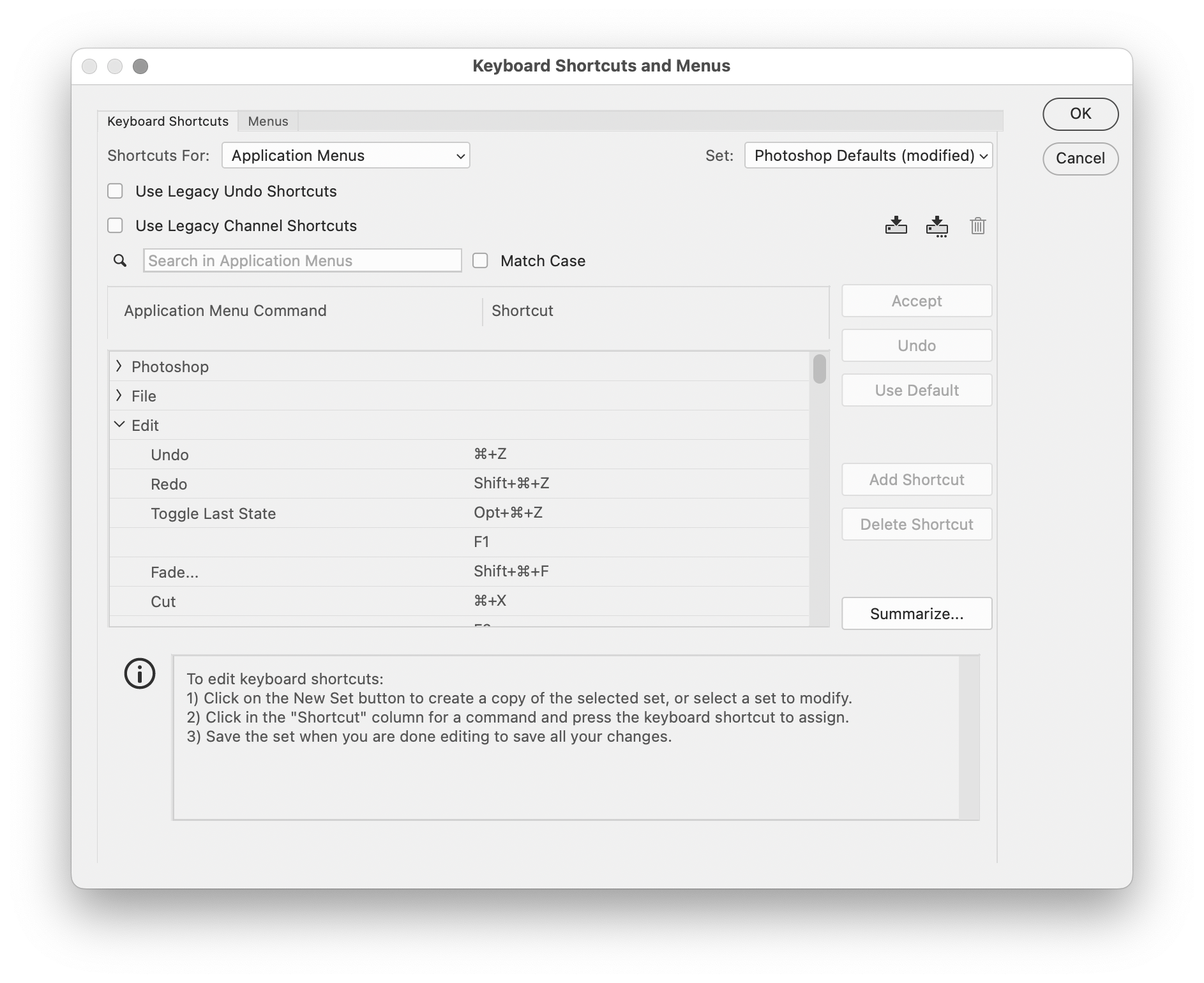
You need to navigate this tangled mess to find a combination of keys that:
- Are not claimed at all, or more realistically
- Won’t drastically affect someone’s experience in a negative way if overridden in a limited and specific context.
You’ll also need to navigate the tangled mess that is politics. The organizations that produce web apps are made out of people, and people have opinions. This includes notions around:
- How things should operate, even at the expense of excluding some unknown number of people.
- Instituting features that have no direct connection to profitability.
Remembering that doing accessibility work means advocating for concerns in an industry that has systematically deprioritized it as a practice can help out some in terms of approach to all of this.
The world does not revolve around your web app
You also need to internalize that your web app is not the center of the universe. It is part of a larger suite of interactions someone is doing on their device to get what they need.
The best possible outcome for introducing a keyboard shortcut that overrides someone’s existing expectations is mild annoyance. A range of negative outcomes follows, probably the most notable being reputational damage.
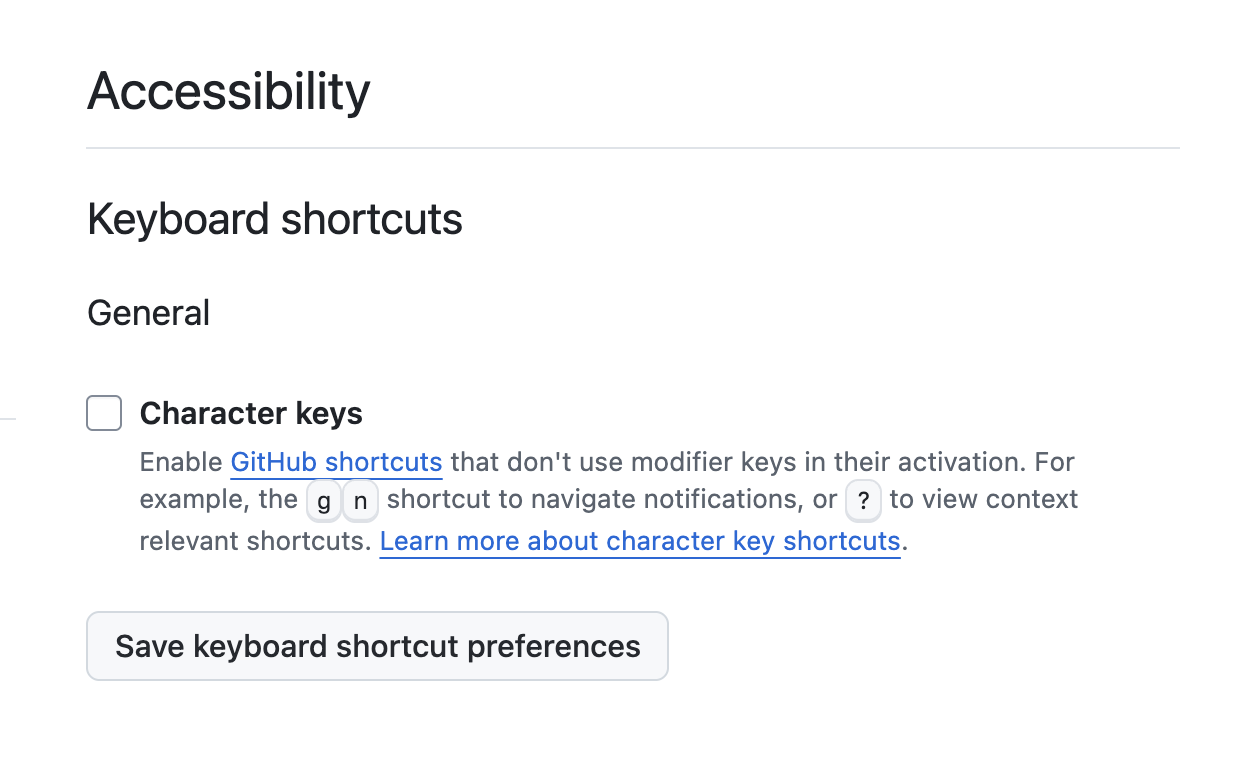
The worst—and unfortunately oftentimes quiet—outcome is that you break assistive technology functionality for someone. This is why WCAG Success Criterion 2.1.4: Character Key Shortcuts exists. It’s also why mature web apps like GitHub have this type of preference toggle:
To the extent of my knowledge, Firefox is the only browser that lets you natively override a keyboard shortcut override, via some buried, legacy menus. This lends further ammo to my belief that browsers are a failure of imagination—the end result of misaligned business priorities.
Some may also point out here that screen readers have passthrough key capability. However, consider:
- The assistive technology being used may not be a screen reader.
- It is a fallacy to assume everyone has perfect working knowledge of the full capabilities of their software and hardware.
- For people that do know about passthrough key support, it is annoying, tedious, and sometimes even painful to have to use them for frequently-used commands.
To say it more plainly: Advocating for the creation of a keyboard preference support area on your web app will be a likely be an arduous undertaking. This is due to a contemporary business culture that largely views user experience to be an inconvenient friction that gets in the way of metrics-obsessed rent-seeking.
The map is not the territory
In reviewing the support table, the lack of OS, browser, or screen reader keyboard shortcuts for an Alt/Command + End keypress might make it seem like a good candidate to use for my task. However, Alt/Command + Home opens the browser start page, then moves the current page back one history event for every major browser on Windows.
People who use modifier keys with End will likely expect the same modifier keys applied to Home to operate in a similar fashion. For example, if some combination of modifier keys plus Page Down scrolls down 75% of the height of the page, one would assume that the same combination plus Page Up scrolls upward 75% instead.
As my research shows, this is true until it isn’t.
Decisions and ramifications
After figuring out what keypresses do what comes the responsibility of figuring out if this behavior is something you want to intentionally suppress.
To me, opening the browser start page and moving the current page back one history event is a weird, awkward, and surprising behavior. However, given the scope and scale of the audience GitHub serves, it is statistically almost certain at least one person loves the feature and uses it every day.
I need to weigh that consideration against the context of the task I am helping out with at work. The new feature involves data entry, so a navigation event introduces the chance of accidental data loss—not ideal!
I say responsibility because there’s also an incredible amount of weight when you factor in how assistive technology operates.
Suppressing the home page-summoning behavior might be annoying, but there are workarounds. Suppressing keys that people who use screen readers rely on to navigate and take action on things locks them out.
For example, don’t use h to open a help dialog. Both NVDA and JAWS use the h key to navigate by heading, and this is the far most popular way that people use screen readers to navigate.
Another way to contextualize it: Overwriting h keypresses would be the equivalent of preventing you from scrolling down via mouse, trackpad, or screen swipe.
More learnings
The table is a beast, but it reveals all sorts of interesting things. A few that stand out to me are:
- Screen readers don’t have parity in function across different manufacturers, unless they do.
- Browsers have consistent behavior across different operating systems, until they don’t.
- All browsers can have the same behavior, save for one—I’m pointing my finger at you, Safari.
- Two browsers may share the same underlying rendering engine, yet have completely different behaviors.
Another map-is-not-the-territory consideration is large areas of seeming cross-operating system support may not work as expected in the actual. Command is frequently used on macOS as a modifier key, so a lack of existing behavior for it and its Windows equivalent may seem tempting.
However, that key position is often occupied by the Windows key on PC keyboards—the button you press to toggle the Start Menu. Although this modifier key may have cross-operating system parity in terms of physical location on a English keyboard, it would not be a great experience for people who use Windows. Alt may also be worth considering here, in that some “generic” keyboards combine the key functionality.
Availability bias
As people who predominately use macOS or Linux to build web experiences, we oftentimes tend to forget other operating systems exist.
This can have even more subtle consequences, in that Mac laptops don’t have physical Home, End, Page Up, and Page Down keys. This fact can conspire to make people forget that these keys exist and are used, to say nothing of other biases such as non-English keyboard layouts.
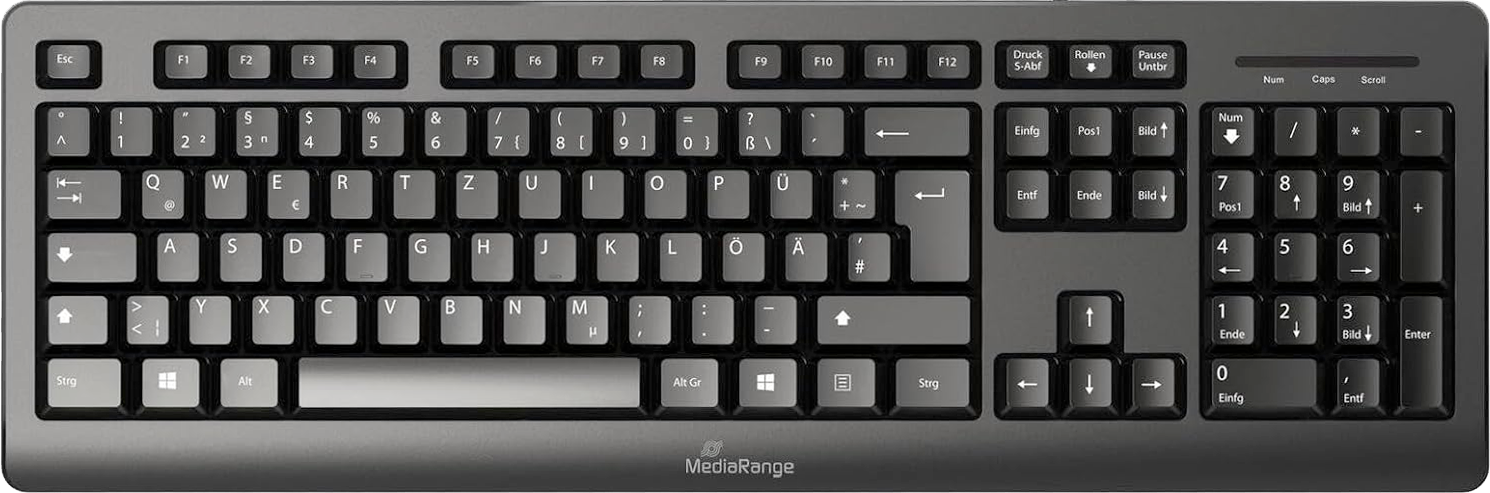
And speaking of things we assume based on the devices we use, another learning well-worth pointing out is the divergence between VoiceOver and JAWS or NVDA. VoiceOver is exclusive to macOS, while JAWS and NVDA are exclusive to Windows. This is important to note in that JAWS and NVDA are far, far more popular than macOS VoiceOver.
Broadly-speaking, VoiceOver has a different interaction paradigm when compared to other popular screen readers. Without proper education about the space, this may lead to false understandings of how things operate in the actual for a lot of people.
The support table
Support table findings
| Keyboard combo | Operating system | Browser | Screen reader | Existing behavior? | Scope | Function |
|---|---|---|---|---|---|---|
| Home | ||||||
| Shift + Home | Windows | Chrome | None | No | N/A | |
| JAWS | No | N/A | ||||
| NVDA | No | N/A | ||||
| Edge | None | No | N/A | |||
| JAWS | No | N/A | ||||
| NVDA | No | N/A | ||||
| Firefox | None | Yes | Browser | Selects all text on line of text before last known cursor position | ||
| JAWS | No | N/A | ||||
| NVDA | No | N/A | ||||
| macOS | Chrome | None | No | N/A | ||
| VoiceOver | No | N/A | ||||
| Edge | None | No | N/A | |||
| VoiceOver | No | N/A | ||||
| Firefox | None | No | N/A | |||
| VoiceOver | No | N/A | ||||
| Safari | None | No | N/A | |||
| VoiceOver | No | N/A | ||||
| Control + Home | Windows | Chrome | None | Yes | Browser | Scrolls to top of page |
| JAWS | Yes | Browser | Scrolls to top of page | |||
| NVDA | Yes | Browser | Scrolls to top of page | |||
| Edge | None | Yes | Browser | Scrolls to top of page | ||
| JAWS | Yes | Browser | Scrolls to top of page | |||
| NVDA | Yes | Browser | Scrolls to top of page | |||
| Firefox | None | Yes | Browser | |||
| JAWS | Yes | Screen Reader | Places focus on first focusable element on the page | |||
| NVDA | Yes | Screen Reader | Places focus on first focusable element on the page | |||
| macOS | Chrome | None | No | N/A | ||
| VoiceOver | No | N/A | ||||
| Edge | None | No | N/A | |||
| VoiceOver | No | N/A | ||||
| Firefox | None | Yes | Browser | Scrolls to top of page | ||
| VoiceOver | Yes | Browser | Scrolls to top of page | |||
| Safari | None | No | N/A | |||
| VoiceOver | No | N/A | ||||
| Option + Home | Windows | Chrome | None | Yes | Operating System | Minimizes all open windows and apps that don’t currently have focus |
| JAWS | Yes | Operating System | Minimizes all open windows and apps that don’t currently have focus | |||
| NVDA | Yes | Operating System | Minimizes all open windows and apps that don’t currently have focus | |||
| Edge | None | Yes | Operating System | Minimizes all open windows and apps that don’t currently have focus | ||
| JAWS | Yes | Operating System | Minimizes all open windows and apps that don’t currently have focus | |||
| NVDA | Yes | Operating System | Minimizes all open windows and apps that don’t currently have focus | |||
| Firefox | None | Yes | Operating System | Minimizes all open windows and apps that don’t currently have focus | ||
| JAWS | Yes | Operating System | Minimizes all open windows and apps that don’t currently have focus | |||
| NVDA | Yes | Operating System | Minimizes all open windows and apps that don’t currently have focus | |||
| macOS | Chrome | None | No | N/A | ||
| VoiceOver | No | N/A | ||||
| Edge | None | No | N/A | |||
| VoiceOver | Yes | Screen Reader | Focuses an arbitrary focusable element before the currently focused item in the DOM, relatively close proximity to the currently focused item | |||
| Firefox | None | Yes | Browser | Opens the browser start page, moves current page back one history event | ||
| VoiceOver | Yes | Screen Reader | Moves focus to the first focusable element in the DOM, then opens the browser start page and moves current page back one history event | |||
| Safari | None | No | N/A | |||
| VoiceOver | No | N/A | ||||
| Alt / Command + Home | Windows | Chrome | None | Yes | Browser | Opens the browser start page, moves current page back one history event |
| JAWS | Yes | Browser | Opens the browser start page, moves current page back one history event | |||
| NVDA | Yes | Browser | Opens the browser start page, moves current page back one history event | |||
| Edge | None | Yes | Browser | Opens the browser start page, moves current page back one history event | ||
| JAWS | Yes | Browser | Opens the browser start page, moves current page back one history event | |||
| NVDA | Yes | Browser | Opens the browser start page, moves current page back one history event | |||
| Firefox | None | Yes | Browser | Opens the browser start page, moves current page back one history event | ||
| JAWS | Yes | Browser | Opens the browser start page, moves current page back one history event | |||
| NVDA | Yes | Browser | Opens the browser start page, moves current page back one history event | |||
| macOS | Chrome | None | No | N/A | ||
| VoiceOver | No | N/A | ||||
| Edge | None | No | N/A | |||
| VoiceOver | No | N/A | ||||
| Firefox | None | No | N/A | |||
| VoiceOver | No | N/A | ||||
| Safari | None | Yes | Browser | Opens the browser start page, moves current page back one history event | ||
| VoiceOver | Yes | Browser | Opens the browser start page, moves current page back one history event | |||
| End | ||||||
| Shift + End | Windows | Chrome | None | No | N/A | |
| JAWS | Yes | Screen Reader | Re-reads content the virtual cursor is placed on | |||
| NVDA | Yes | Screen Reader | Selects next line | |||
| Edge | None | No | N/A | |||
| JAWS | Yes | Screen Reader | Re-reads content the virtual cursor is placed on | |||
| NVDA | Yes | Screen Reader | Selects next line | |||
| Firefox | None | No | N/A | |||
| JAWS | Yes | Screen Reader | Re-reads content the virtual cursor is placed on | |||
| NVDA | Yes | Screen Reader | Selects next line | |||
| macOS | Chrome | None | No | N/A | ||
| VoiceOver | No | N/A | ||||
| Edge | None | No | N/A | |||
| VoiceOver | No | N/A | ||||
| Firefox | None | No | N/A | |||
| VoiceOver | No | N/A | ||||
| Safari | None | No | N/A | |||
| VoiceOver | No | N/A | ||||
| Control + End | Windows | Chrome | None | Yes | Browser | Scrolls to bottom of page |
| JAWS | Yes | Screen Reader | Places virtual cursor on the last node in the DOM | |||
| NVDA | Yes | Screen Reader | Places virtual cursor on last landmark in the DOM | |||
| Edge | None | No | N/A | |||
| JAWS | Yes | Screen Reader | Places virtual cursor on the last node in the DOM | |||
| NVDA | Yes | Screen Reader | Places virtual cursor on last landmark | |||
| Firefox | None | Yes | Browser | Scrolls to end of page | ||
| JAWS | Yes | Screen Reader | Places virtual cursor on the last node in the DOM | |||
| NVDA | Yes | Screen Reader | Re-reads currently focused DOM node | |||
| macOS | Chrome | None | No | N/A | ||
| VoiceOver | No | N/A | ||||
| Edge | None | No | N/A | |||
| VoiceOver | Yes | Screen Reader | Moves focus to the end of the next content section in the DOM | |||
| Firefox | None | No | N/A | |||
| VoiceOver | Yes | Screen Reader | Moves focus to the end of the next content section in the DOM | |||
| Safari | None | No | N/A | |||
| VoiceOver | No | N/A | ||||
| Option + End | Windows | Chrome | None | No | N/A | |
| JAWS | No | N/A | ||||
| NVDA | No | N/A | ||||
| Edge | None | No | N/A | |||
| JAWS | No | N/A | ||||
| NVDA | No | N/A | ||||
| Firefox | None | No | N/A | |||
| JAWS | No | N/A | ||||
| NVDA | No | N/A | ||||
| macOS | Chrome | None | No | N/A | ||
| VoiceOver | No | N/A | ||||
| Edge | None | No | N/A | |||
| VoiceOver | Yes | Screen Reader | Moves focus to the end of the next content section in the DOM | |||
| Firefox | None | No | N/A | |||
| VoiceOver | Yes | Screen Reader | Moves focus to the end of the next content section in the DOM | |||
| Safari | None | No | N/A | |||
| VoiceOver | No | N/A | ||||
| Alt / Command + End | Windows | Chrome | None | No | N/A | |
| JAWS | No | N/A | ||||
| NVDA | No | N/A | ||||
| Edge | None | No | N/A | |||
| JAWS | No | N/A | ||||
| NVDA | No | N/A | ||||
| Firefox | None | No | N/A | |||
| JAWS | No | N/A | ||||
| NVDA | No | N/A | ||||
| macOS | Chrome | None | No | N/A | ||
| VoiceOver | No | N/A | ||||
| Edge | None | No | N/A | |||
| VoiceOver | No | N/A | ||||
| Firefox | None | No | N/A | |||
| VoiceOver | No | N/A | ||||
| Safari | None | No | N/A | |||
| VoiceOver | No | N/A | ||||
| Page Up | ||||||
| Shift + Page Up | Windows | Chrome | None | No | N/A | |
| JAWS | Yes | Screen Reader | Selects all text in a range above and below the current position of the virtual cursor | |||
| NVDA | Yes | Screen Reader | Reads the DOM past the current position of the virutal cursor | |||
| Edge | None | No | N/A | |||
| JAWS | Yes | Screen Reader | Selects a section of text below the current position of the virtual cursor | |||
| NVDA | Yes | Screen Reader | Reads the DOM past the current position of the virutal cursor | |||
| Firefox | None | Yes | Browser | Scrolls down one page section and selects all text in range of the scroll distance | ||
| JAWS | Yes | Screen Reader | Reads a small portion of the DOM past the current position of the virtual cursor | |||
| NVDA | Yes | Screen Reader | Reads the DOM past the current position of the virutal cursor | |||
| macOS | Chrome | None | No | N/A | ||
| VoiceOver | No | N/A | ||||
| Edge | None | No | N/A | |||
| VoiceOver | No | N/A | ||||
| Firefox | None | No | N/A | |||
| VoiceOver | No | N/A | ||||
| Safari | None | No | N/A | |||
| VoiceOver | No | N/A | ||||
| Control + Page Up | Windows | Chrome | None | Yes | Browser | Opens previous browser tab |
| JAWS | Yes | Browser | Opens previous browser tab | |||
| NVDA | Yes | Browser | Opens previous browser tab | |||
| Edge | None | Yes | Browser | Opens previous browser tab | ||
| JAWS | Yes | Browser | Opens previous browser tab | |||
| NVDA | Yes | Browser | Opens previous browser tab | |||
| Firefox | None | Yes | Browser | Opens previous browser tab | ||
| JAWS | Yes | Browser | Opens previous browser tab | |||
| NVDA | Yes | Browser | Opens previous browser tab | |||
| macOS | Chrome | None | Yes | Browser | Opens previous browser tab | |
| VoiceOver | Yes | Browser | Opens previous browser tab | |||
| Edge | None | Yes | Browser | Opens previous browser tab | ||
| VoiceOver | Yes | Browser | Opens previous browser tab | |||
| Firefox | None | Yes | Browser | Opens previous browser tab | ||
| VoiceOver | Yes | Browser | Opens previous browser tab | |||
| Safari | None | No | N/A | |||
| VoiceOver | No | N/A | ||||
| Option + Page Up | Windows | Chrome | None | No | N/A | |
| JAWS | No | N/A | ||||
| NVDA | No | N/A | ||||
| Edge | None | No | N/A | |||
| JAWS | No | N/A | ||||
| NVDA | No | N/A | ||||
| Firefox | None | No | N/A | |||
| JAWS | No | N/A | ||||
| NVDA | No | N/A | ||||
| macOS | Chrome | None | No | N/A | ||
| VoiceOver | No | N/A | ||||
| Edge | None | No | N/A | |||
| VoiceOver | No | N/A | ||||
| Firefox | None | No | N/A | |||
| VoiceOver | No | N/A | ||||
| Safari | None | No | N/A | |||
| VoiceOver | No | N/A | ||||
| Alt / Command + Page Up | Windows | Chrome | None | No | N/A | |
| JAWS | No | N/A | ||||
| NVDA | No | N/A | ||||
| Edge | None | No | N/A | |||
| JAWS | No | N/A | ||||
| NVDA | No | N/A | ||||
| Firefox | None | No | N/A | |||
| JAWS | No | N/A | ||||
| NVDA | No | N/A | ||||
| macOS | Chrome | None | No | N/A | ||
| VoiceOver | No | N/A | ||||
| Edge | None | No | N/A | |||
| VoiceOver | No | N/A | ||||
| Firefox | None | No | N/A | |||
| VoiceOver | No | N/A | ||||
| Safari | None | No | N/A | |||
| VoiceOver | No | N/A | ||||
| Page Down | ||||||
| Shift + Page Down | Windows | Chrome | None | No | N/A | |
| JAWS | Yes | Screen Reader | Selects all text in range above and below the current position of the virtual cursor | |||
| NVDA | Yes | Screen Reader | Reads the DOM past the current position of the virutal cursor | |||
| Edge | None | No | N/A | |||
| JAWS | Yes | Screen Reader | Selects a section of text below the current position of the virtual cursor | |||
| NVDA | Yes | Screen Reader | Reads the DOM past the current position of the virtual cursor | |||
| Firefox | None | Yes | Browser | Scrolls down one page section and selects all text in range of the scroll distance | ||
| JAWS | Yes | Screen Reader | Reads a small portion of the DOM past the current position of the virtual cursor | |||
| NVDA | Yes | Screen Reader | Reads the DOM past the current position of the virutal cursor | |||
| macOS | Chrome | None | N/A | |||
| VoiceOver | No | N/A | ||||
| Edge | None | No | N/A | |||
| VoiceOver | No | N/A | ||||
| Firefox | None | No | N/A | |||
| VoiceOver | No | N/A | ||||
| Safari | None | No | N/A | |||
| VoiceOver | No | N/A | ||||
| Control + Page Down | Windows | Chrome | None | Yes | Browser | Opens next browser tab |
| JAWS | Yes | Browser | Opens next browser tab | |||
| NVDA | Yes | Browser | Opens next browser tab | |||
| Edge | None | Yes | Browser | Opens next browser tab | ||
| JAWS | Yes | Browser | Opens next browser tab | |||
| NVDA | Yes | Browser | Opens next browser tab | |||
| Firefox | None | Yes | Browser | Opens next browser tab | ||
| JAWS | Yes | Browser | Opens next browser tab | |||
| NVDA | Yes | Browser | Opens next browser tab | |||
| macOS | Chrome | None | Yes | Browser | Opens next browser tab | |
| VoiceOver | Yes | Browser | Opens next browser tab | |||
| Edge | None | Yes | Browser | Opens next browser tab | ||
| VoiceOver | Yes | Browser | Opens next browser tab | |||
| Firefox | None | Yes | Browser | Opens next browser tab | ||
| VoiceOver | Yes | Browser | Opens next browser tab | |||
| Safari | None | No | N/A | |||
| VoiceOver | No | N/A | ||||
| Option + Page Down | Windows | Chrome | None | No | N/A | |
| JAWS | No | N/A | ||||
| NVDA | No | N/A | ||||
| Edge | None | No | N/A | |||
| JAWS | No | N/A | ||||
| NVDA | No | N/A | ||||
| Firefox | None | No | N/A | |||
| JAWS | No | N/A | ||||
| NVDA | No | N/A | ||||
| macOS | Chrome | None | N/A | |||
| VoiceOver | No | N/A | ||||
| Edge | None | No | N/A | |||
| VoiceOver | No | N/A | ||||
| Firefox | None | No | N/A | |||
| VoiceOver | No | N/A | ||||
| Safari | None | No | N/A | |||
| VoiceOver | No | N/A | ||||
| Alt / Command + Page Down | Windows | Chrome | None | No | N/A | |
| JAWS | No | N/A | ||||
| NVDA | No | N/A | ||||
| Edge | None | No | N/A | |||
| JAWS | No | N/A | ||||
| NVDA | No | N/A | ||||
| Firefox | None | No | N/A | |||
| JAWS | No | N/A | ||||
| NVDA | No | N/A | ||||
| macOS | Chrome | None | No | N/A | ||
| VoiceOver | No | N/A | ||||
| Edge | None | No | N/A | |||
| VoiceOver | No | N/A | ||||
| Firefox | None | No | N/A | |||
| VoiceOver | No | N/A | ||||
| Safari | None | No | N/A | |||
| VoiceOver | No | N/A | ||||
Testing notes
Evaluation was conducted the week of January 19th, 2026. Following is what I used to conduct my research:
Keyboards
- 2021 MacBook Pro.
- Logitech Slim Solar+ K980.
Operating Systems and browsers
- Windows, version 26200.7623.
- Chrome, version 144.0.7559.97.
- Edge, version 144.0.3719.92.
- Firefox, version 147.0.1.
- macOS, version 15.7.3 (fuck you, Liquid Glass).
- Chrome, version 144.0.7559.97.
- Edge, version 144.0.3719.92.
- Firefox, version 147.0.1.
- Safari, version 26.2 (20623.1.14.18.4).
Assistive technology
- JAWS, version 2026.2512.50.
- NVDA, version 2025.3.2.
- VoiceOver, using macOS version 15.7.3.
Also note
- I am not presenting the suggestions I recommended at my job because of how contextual this work is.
- These details from a past effort.
- What wasn’t evaluated:
- I didn't evaluate Narrator.
- I didn’t evaluate less-popular Chromium browsers.
- I didn’t evaluate popular browser extensions like Grammarly.
- I didn’t evaluate support on iOS or Android, but they do support keyboard input and people do use them.
- I also didn’t evaluate Linux or Orca. There are just too many possible permutations.
- Seriously. I am only one man with a full-time job and a dog who does not like it when I’m not giving her attention, folks.
- Using an LLM:
- Plaintext copies of screen reader manuals to use as LLM context still created hallucinations.
- It also doesn’t cover the app or operating system layers.
- The stakes are too high considering the human-facing impact, and it was likely net-less effort to manually test once to get certainty with results.
- There might be a point worth thinking through in that previous bullet point.